The SpecKit Companion Extension: Make spec-kit Visible, Right-Sized, and Yours

You install spec-kit, run /speckit.specify, and your AI does genuinely good work. Then you open VS Code to glance at where things stand, and the sidebar is dark. Nothing is there. The whole run happened in the terminal and left nothing behind for any other tool to read.
That is not a bug. Stock spec-kit fires a command at your AI and never hears back, so it cannot adjust the flow, reshape it, or record it. Every change gets the same full pipeline whether you are renaming a button or building a feature. The day you want to bolt your own step onto that flow, your only option is to fork the command. And nothing it does in the terminal gets written down, so no other tool can show you where things stand.
That gap is the whole reason the SpecKit Companion extension exists.
It is the spec-kit-side half
One thing to get straight up front, because the names collide. There are two pieces, installed separately.
The VS Code extension is the GUI: the sidebar, the status badges, the Resume button. That is the half you look at.
The spec-kit extension is the half this article is about. It installs into spec-kit and runs there, on the command line. It writes the file the GUI reads, decides how much pipeline a change deserves, and lets you reshape the commands. It is the engine room, not the dashboard.
They are built for each other but they do not depend on each other at runtime. The extension writes a plain .spec-context.json that is useful to any tool. The GUI just happens to be the best reader of it.
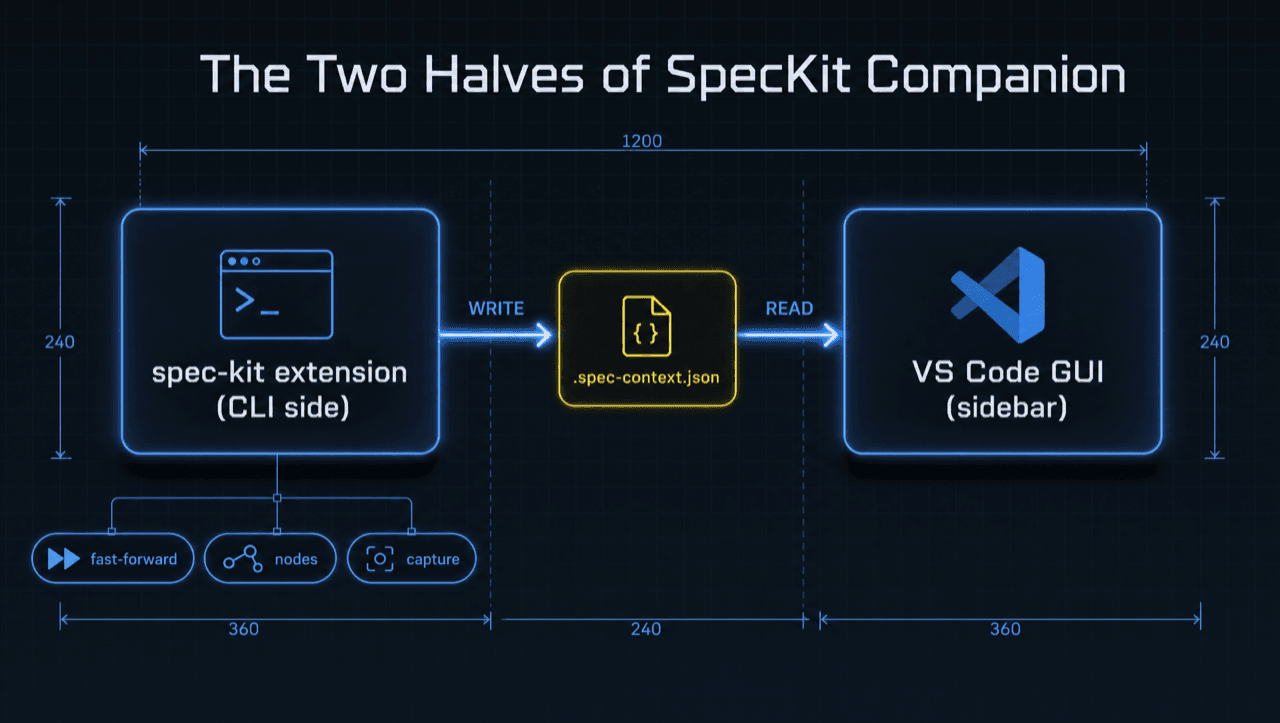
Those three chips under the CLI side, fast-forward, nodes, and capture, are the three things the extension brings. The rest of this piece is one section each.
That JSON is what turns the dark sidebar bright. Once the extension is recording, the same specs you ran from the terminal show up in the Companion panel with their status, phase, and history.
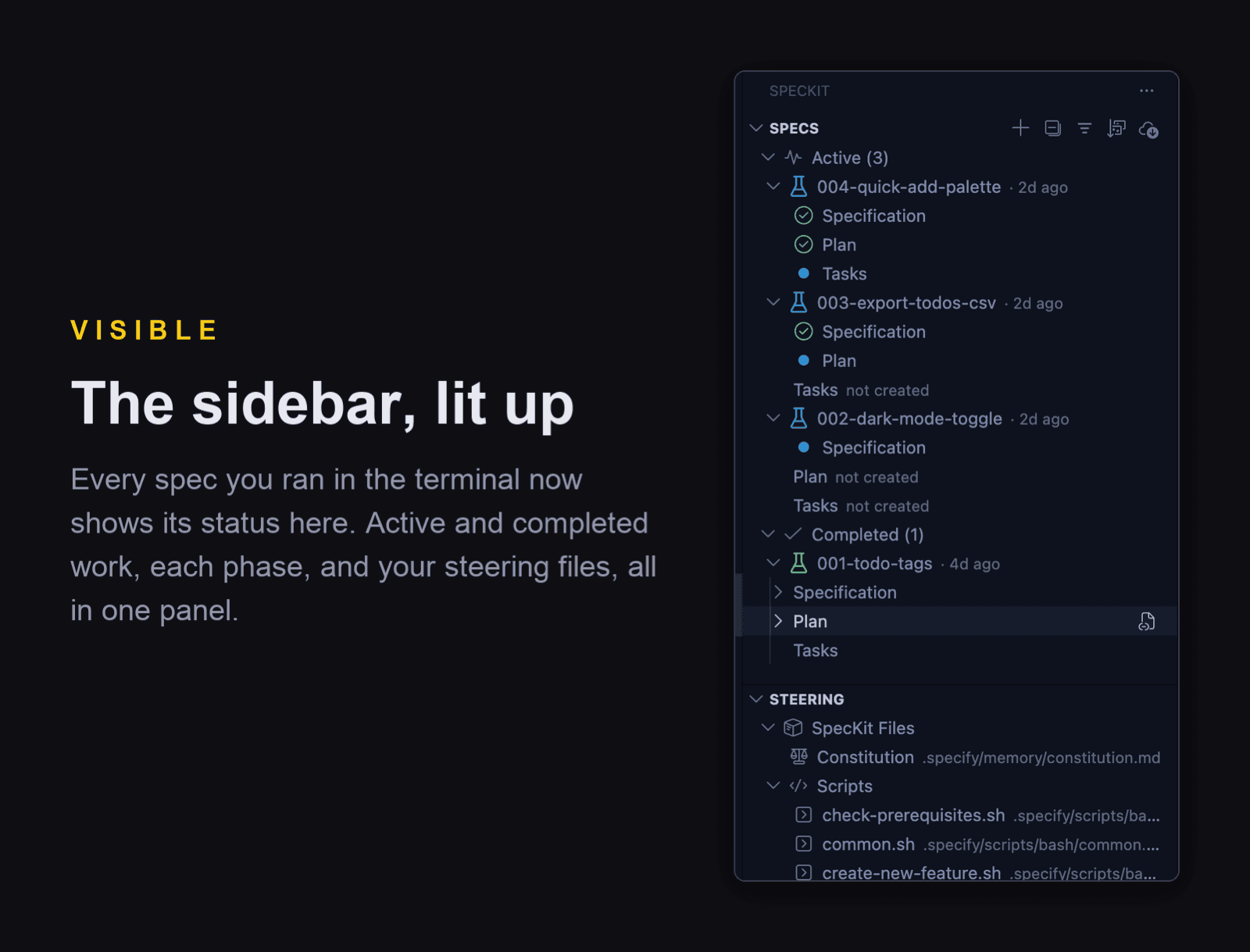
Here is the part that makes it easy to adopt: it rides your existing spec-kit commands through lifecycle hooks. You do not learn new commands to get any of this. You run /speckit.specify and /speckit.implement exactly as you do today, and the extension records along the way. It also runs wherever spec-kit runs, so Claude Code, Copilot, Cursor, and Gemini all get it, with extra depth on Claude.
Finding your way once it fills up
A panel full of specs is only useful if you can find the one you want. The Companion keeps the list organized on its own: every spec drops into an Active, Completed, or Archived group, each with a running count, and carries a color-coded badge for the phase it reached. When the list grows, a filter box narrows it by name in a keystroke, and a sort menu reorders everything by number, name, date created, last edited, or workflow status. The spec you touched five minutes ago, or the three still waiting on tasks, is never more than a glance away.
Keeping it current is just as light. The cloud-download button at the top of the panel opens an Upgrade menu that refreshes the spec-kit CLI, this project's scaffolding, or the companion extension itself, the same install line from below, run for you. And the extension watches for its own new releases in the background, so you get a quiet nudge when one lands instead of chasing version numbers.
Install it
You need a github-source spec-kit first, because the stock PyPI build has no extension subsystem:
# 📃 install the github-source spec-kit CLI
uv tool install specify-cli --from git+https://github.com/github/spec-kit.git --force
Then add the extension:
# 📃 install (and later update) the SpecKit Companion extension
# 👇 this URL is stable, so the same line updates you later
specify extension add companion \
  --from https://github.com/alfredoperez/speckit-companion/releases/download/companion-latest/companion.zip \
  --force
To update later, re-run that exact line. The companion-latest URL always serves the newest build, and --force refreshes the install in place. No version string to chase. Confirm it landed with specify extension list and look for companion.
Now the three things it brings.
1. It fast-forwards small changes
A full spec, then plan, then tasks, then implement is the right amount of process for a real feature. It is absurd for renaming a button.
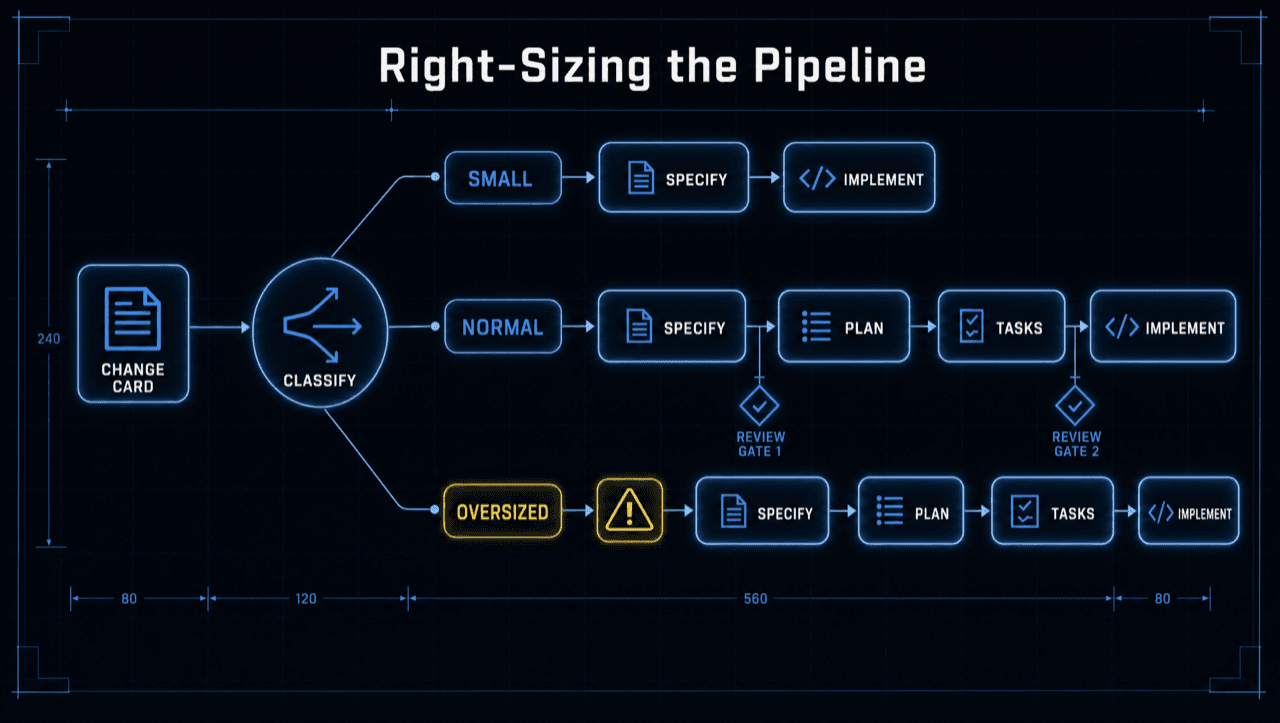
So after specify, the Companion pipeline sizes the change on its own and emits one of three signals: small, normal, or oversized. A small change folds plan and tasks toward implement and skips the review pauses, so a one-line edit fast-forwards straight to building. A normal change gets the full pipeline with both review gates. An oversized change prints a visible warning and still runs the full pipeline, because the safe default is never to silently drop a phase.
The line is concrete: roughly five files or ten tasks. And there is no on/off toggle to forget. The thresholds live in the workflow itself, so the same rule applies every run without you choosing a mode.
2. You can rearrange it from nodes
Sooner or later you want your own step in the pipeline: a lint-and-test gate before handoff, a review-and-PR tail after implement. On stock spec-kit that means forking the command and re-applying your fork every time upstream moves. That tax is why most people never customize at all.
The Companion drops the tax. Each command is assembled from small named sections called nodes: a plan command, for instance, is gather-context, then plan-doc, then constitution-check, and so on. Because a command is just a list of nodes, you reshape it without touching it. Drop an optional .specify/companion.yml in your project and attach your own work before or after any node: run a shell command, add an instruction, call a reusable node file, or reorder which nodes run. Leave the file out and every command runs exactly as it ships.
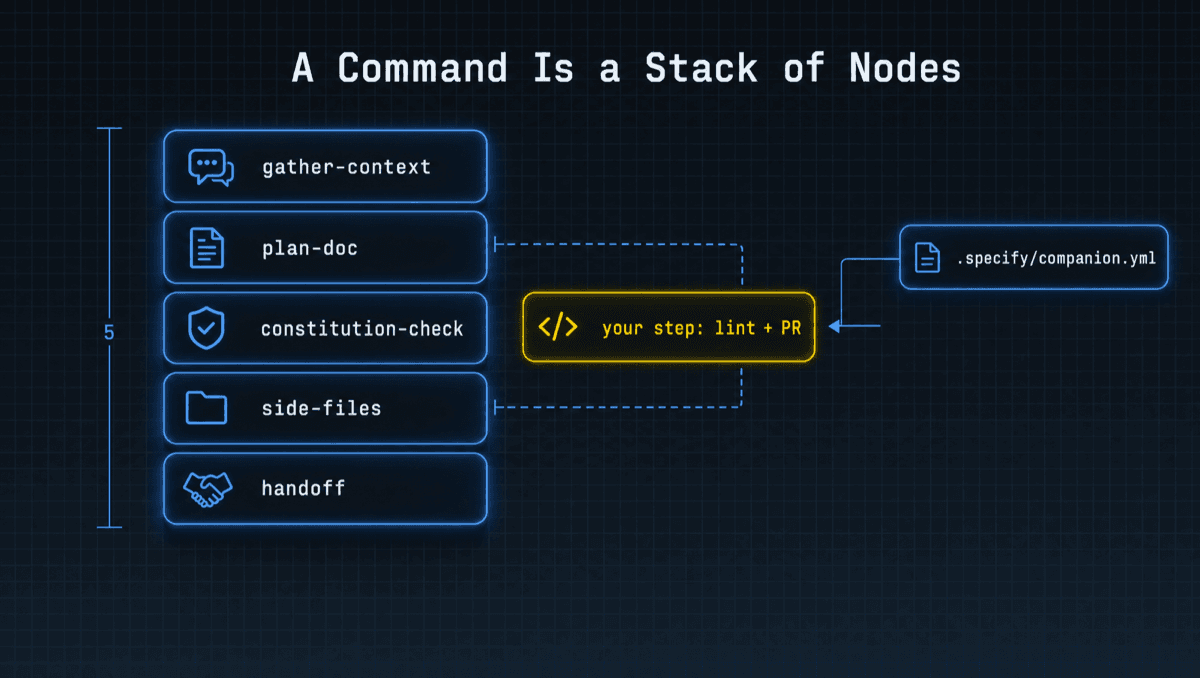
The worked example in the repo wires a full ship tail onto the end of a build: review, open a PR, run a Copilot review, merge, reinstall. None of that touched the original command. You composed it.
# 📃 .specify/companion.yml
# 👇 run your own checks + ship step after implement finishes, no fork required
commands:
  implement:
    hooks:
      after:
        implement-exec:
          - { type: command, run: 'npm run lint && npm test' }
          - { type: node, ref: ship-ticket } # .specify/companion/nodes/ship-ticket.md
3. It feeds the activity panel
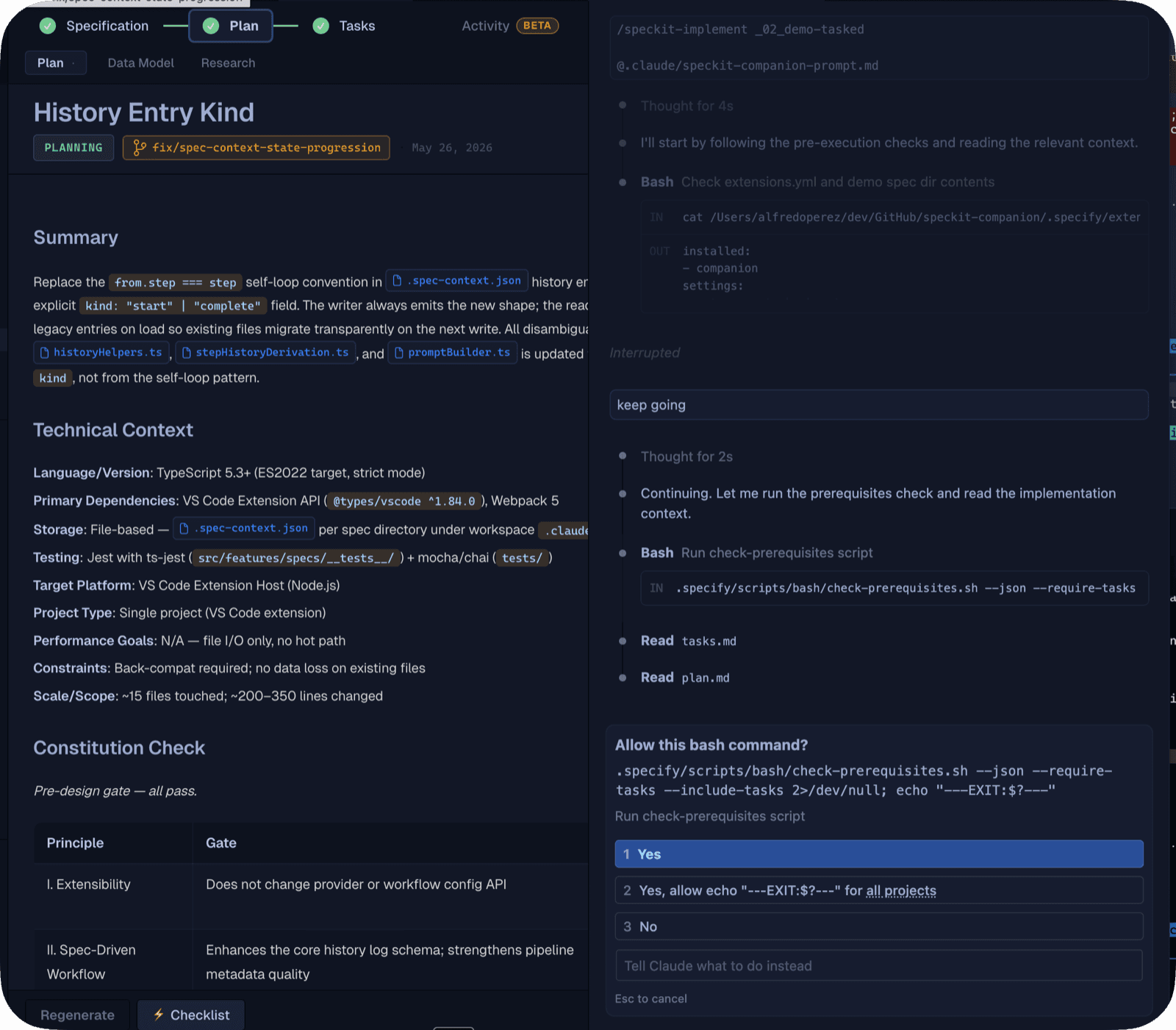
As your AI moves through specify, plan, tasks, and implement, each step is recorded into .spec-context.json the moment it finishes. That file is what the Companion sidebar reads, so your VS Code panel lights up on the flow you were already running. No extra commands, no separate "tracking mode."
During implement it goes a level deeper. Each task is journaled the instant its work is done, with a one-line note on what it did and the files it touched. The activity panel leans on exactly that: the per-task notes and the step-level timing. So instead of scrolling back through terminal output to reconstruct what happened, you read a build log that wrote itself.
And it does not lie when something goes sideways. If a hook never fired, a skipped command, an out-of-band run, a project that never had the extension, a recovery script rebuilds the same state from the artifacts on disk: spec.md, plan.md, tasks.md, and git. The panel reflects reality, not a half-truth.
And a few things you get for free
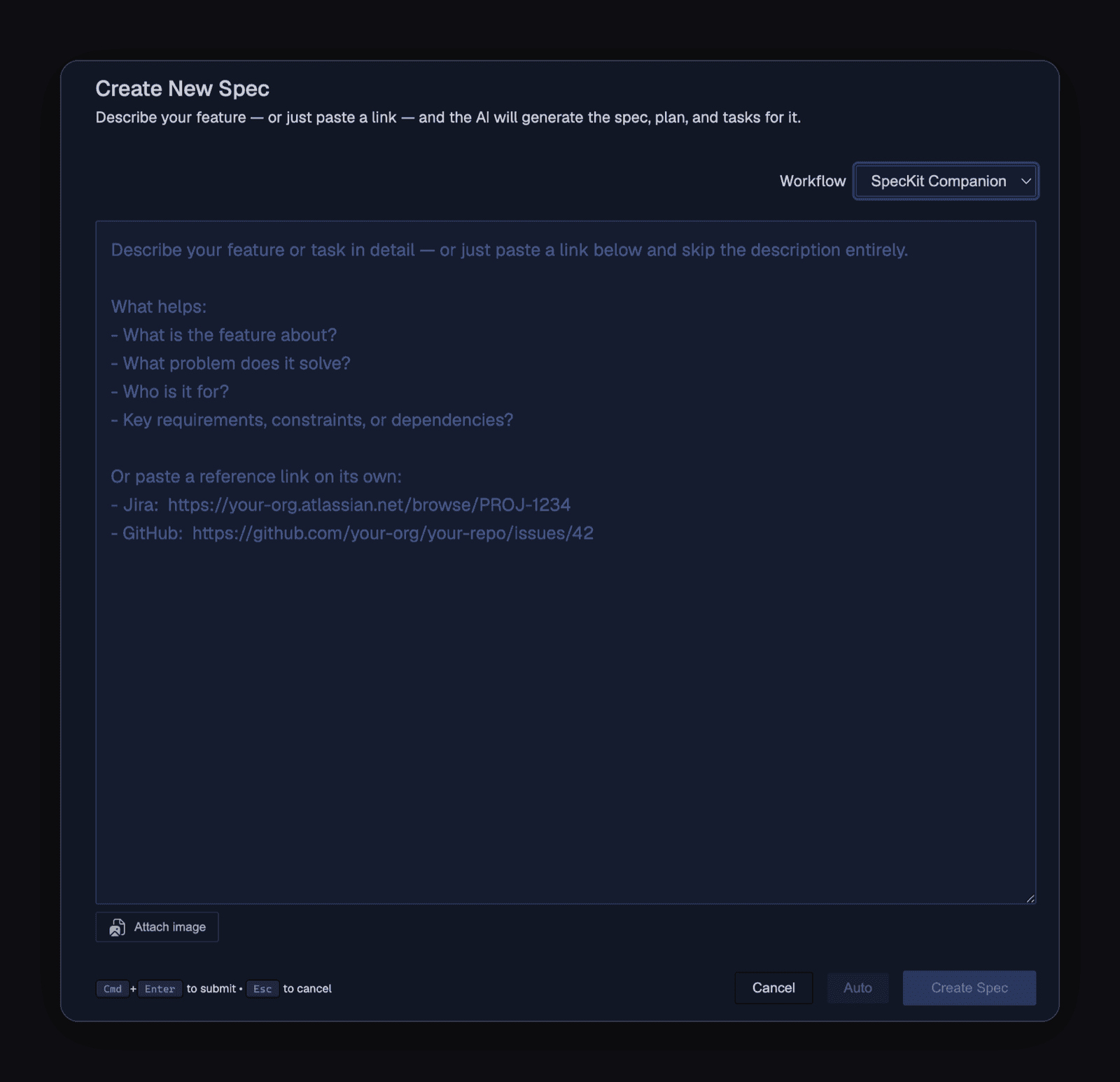
Because the extension tracks the flow, two more commands fall out of it. /speckit.companion.status prints where the active spec stands and what comes next. /speckit.companion.resume picks up exactly where you left off and dispatches the next command for you. When the last task is done, the run marks itself completed and drops out of your active list instead of stalling at "implemented." And if you want the whole thing hands-off, /speckit.companion.auto drives specify through done with no approval pauses. The same hands-off build is one click from the editor, the Auto Mode button right on the New Spec dialog.
What's next
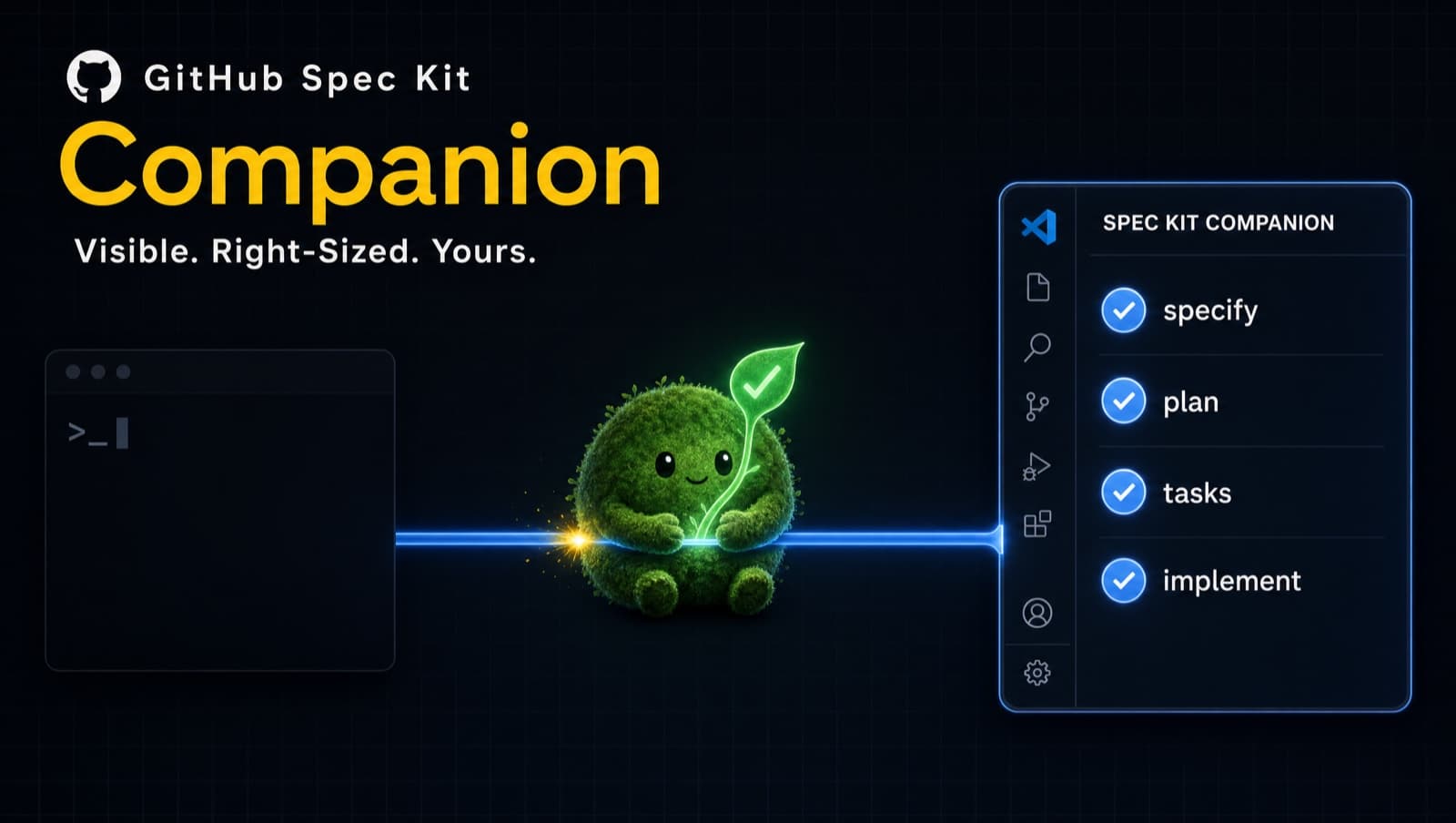
Install it with the one line above, run a real /speckit.specify, and watch the sidebar fill in. The extension is the half that makes spec-driven work visible, right-sized, and yours to reshape.
Want to see what that visible half actually looks like in the editor? That is What is SpecKit Companion (Part 2), the tour of the sidebar, the spec viewer, and inline review. New to the whole approach? Start with Stop Vibe Coding, Start Shipping (Part 1).
Want the build story behind this? Build Log 4 covers the node engine that makes the right-sizing and customization possible.