- Published on
Introducing ngx-dev-toolbar
- Authors

- Name
- Alfredo Perez
- @alfrodo_perez
How many times have you said "let me just update the configuration in the database really quick"?
Whenever we're developing an application, we need to test things with different feature flags, configurations, permissions, or even localization to reproduce bugs or scenarios that customers are experiencing or while developing new features and it shouldn't require backend gymnastics or switching to another website to make these modifications. It should be easy—something you can just turn on and off and see the results immediately.
The Problem
Let's say you want to test admin-only features. Sometimes you need to change user roles in the database or modify user permissions. This requires going to the database, finding the right table, and changing the specific permission. If you're lucky, you'll get it on the first shot. But maybe you have to play around to see if you're changing the correct table and user information.
Another scenario: maybe you have different tiers for your users, and you need to do something similar to the permissions situation. You have to find where to set these premium tiers or app features that are only enabled for specific users.
Finally, there's the feature flag scenario. Usually you have another website or provider like LaunchDarkly where you manage these feature flags. To change one, you need to go to that website, find the feature flag you want to toggle, and verify that it's toggling for exactly the environment you're working on. If you have different environments like UAT, staging, development, and local, you might have to toggle in multiple places—while making sure you don't affect any other developers.
This repetitive cycle kills flow and it has the risk of modifying the environment for the whole team. There should be a solution to do it locally while you're developing your application.
Enter ngx-dev-toolbar
ngx-dev-toolbar is an Angular development toolbar inspired by the dev toolbars that Astro and Next.js have. The main objective is that you can modify things like settings, permissions, feature flags, localization, and more—on the fly while you're developing—without affecting any other developers and without leaving your application.
You can toggle the toolbar anytime using Ctrl+Shift+D. The toolbar appears at the bottom of your screen when you hover over it and automatically hides after a few seconds of inactivity—so it stays out of your way until you need it.
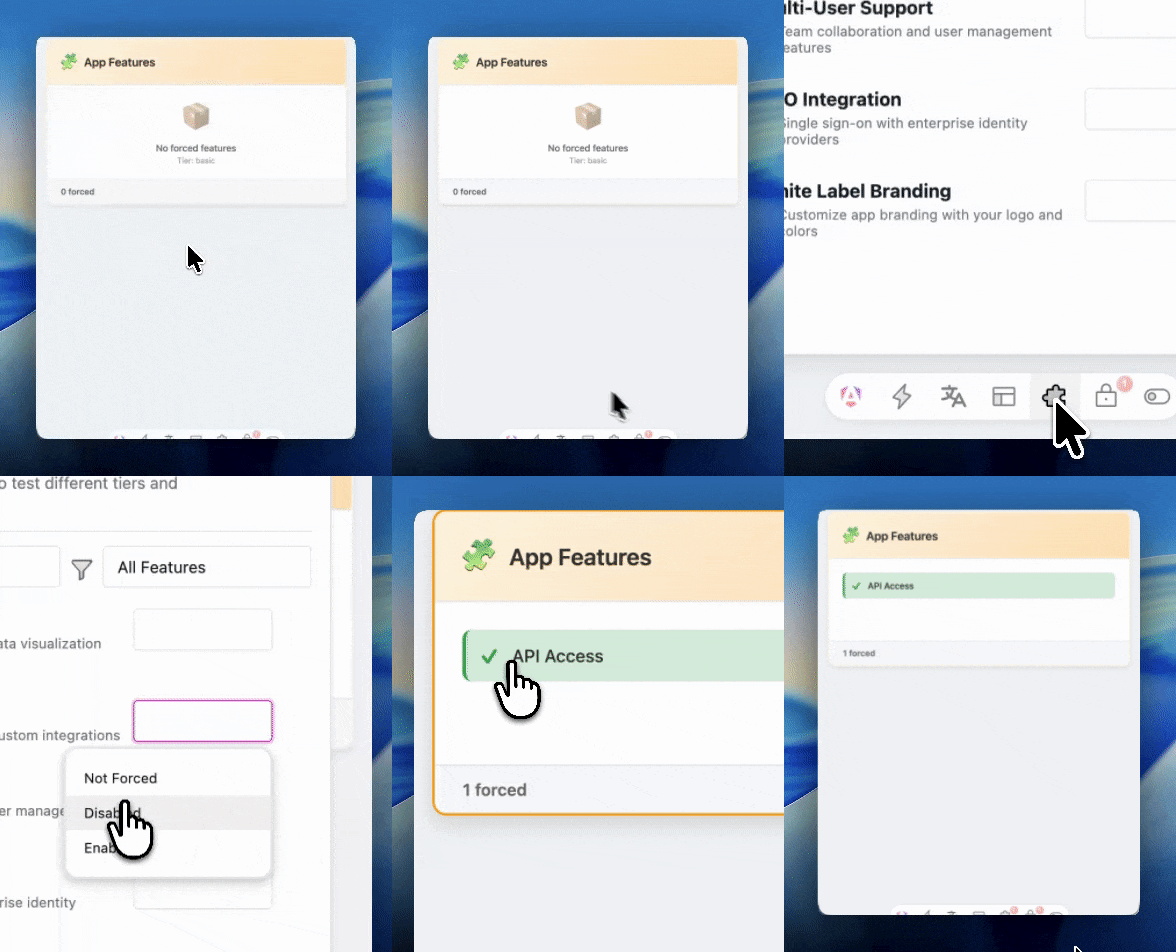
This has zero production impact as well. Once you're in a deployed environment, the toolbar won't be loaded and any local changes won't be registered.
Finally, and not the least important, you can create your own custom tools to help during development. For example, if you need to create or remove test data on the fly, you can build a tool that does that with a push of a button.
5-Minute Setup
Installing ngx-dev-toolbar is really easy. Start by installing the package:
npm install ngx-dev-toolbar --save-dev
Once installed, add the toolbar component to your main application component:
// app.component.ts
import { DevToolbarComponent } from 'ngx-dev-toolbar';

@Component({
  imports: [DevToolbarComponent],
  template: '<app-header /><router-outlet /><ndt-toolbar />'  // Add ndt-toolbar
})
export class AppComponent {}
That's it! The toolbar is now available in your application.
Built-in Tools Overview
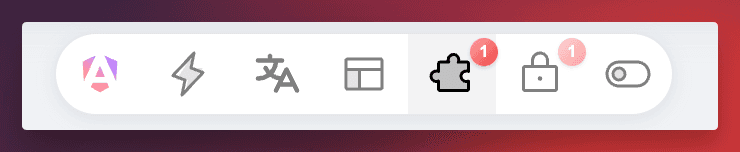
The toolbar comes with four main tools out of the box. Let's take a quick look at what each one does.
The toolbar icons also show badge indicators when you have active overrides—so you can instantly see which tools have forced values.
Feature Flags
Toggle feature flags on and off without touching your backend or feature flag provider. You can see which flags are currently enabled, force them to specific values, and instantly see the effect in your application.
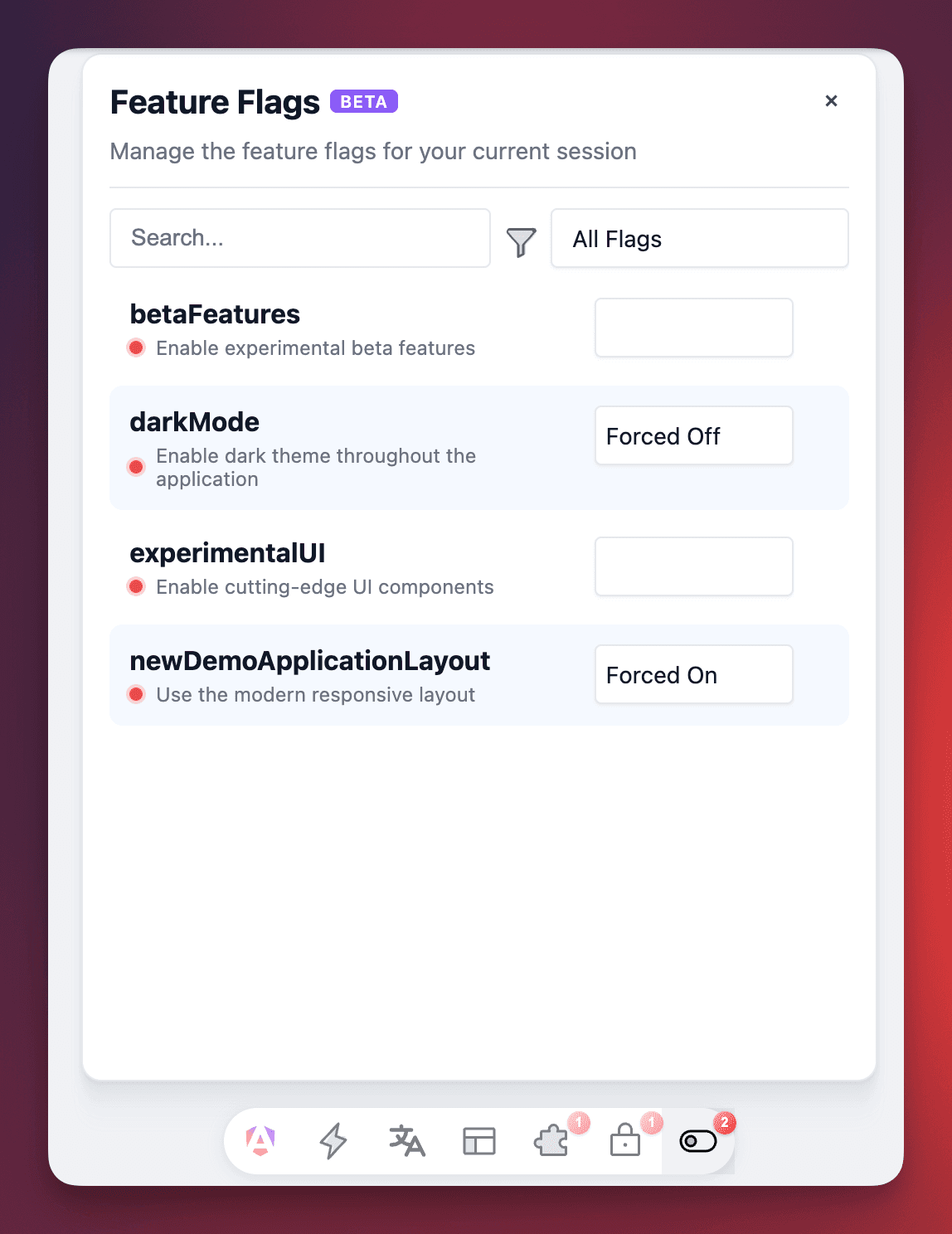
The panel shows you all your flags with the ability to filter by: All, Forced, Enabled, or Disabled. When you force a flag, you can see both the forced value and the original value—so you always know what you've overridden. You'll also notice the toolbar icon shows a badge with the count of forced flags.
Permissions
Test different permission scenarios without switching user accounts. Grant or deny specific permissions to see how your UI responds to different access levels.
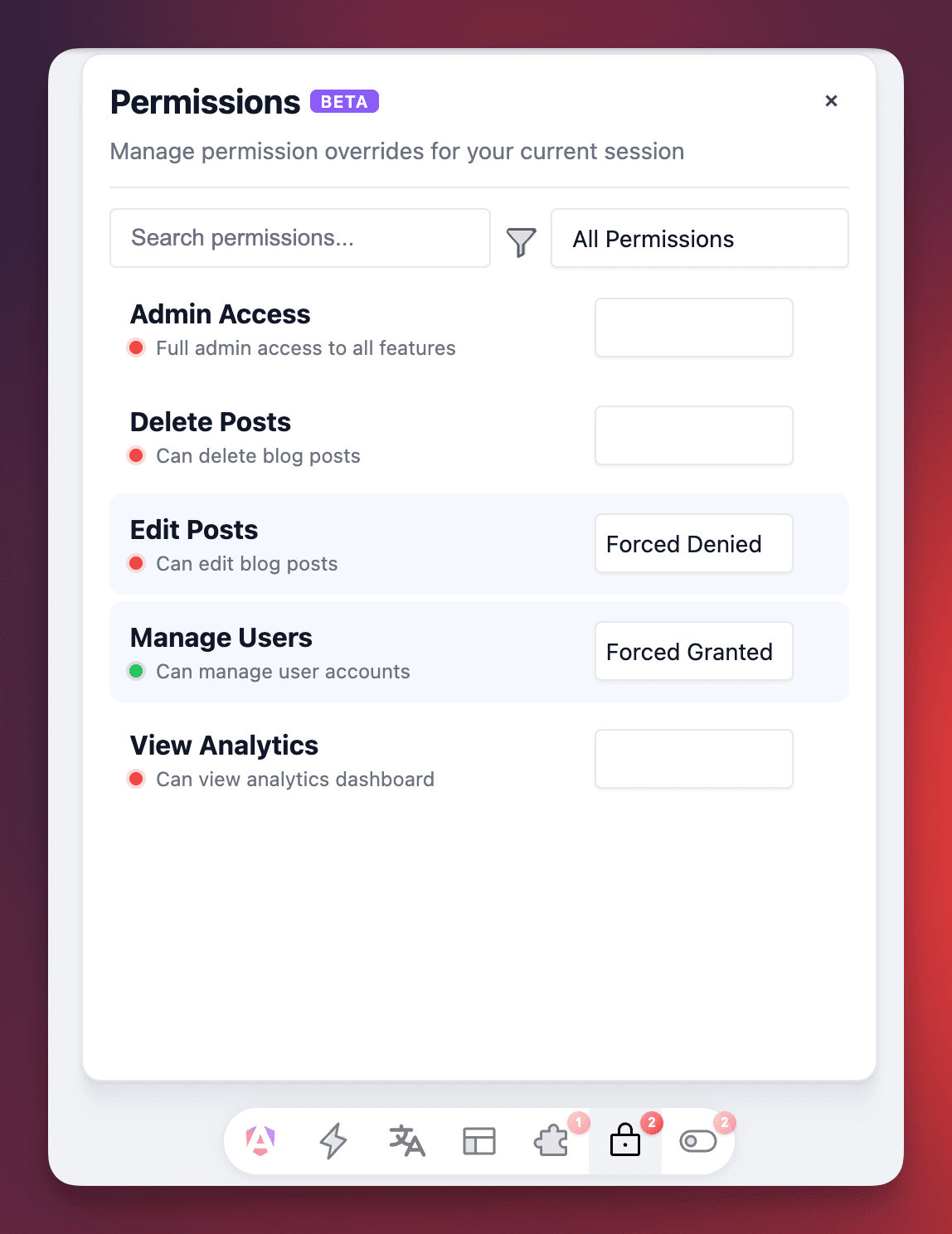
This is perfect for testing role-based access control (RBAC) scenarios. Need to see what a read-only user experiences? Just deny the edit permissions. Testing admin functionality? Grant all permissions with a few clicks.
App Features
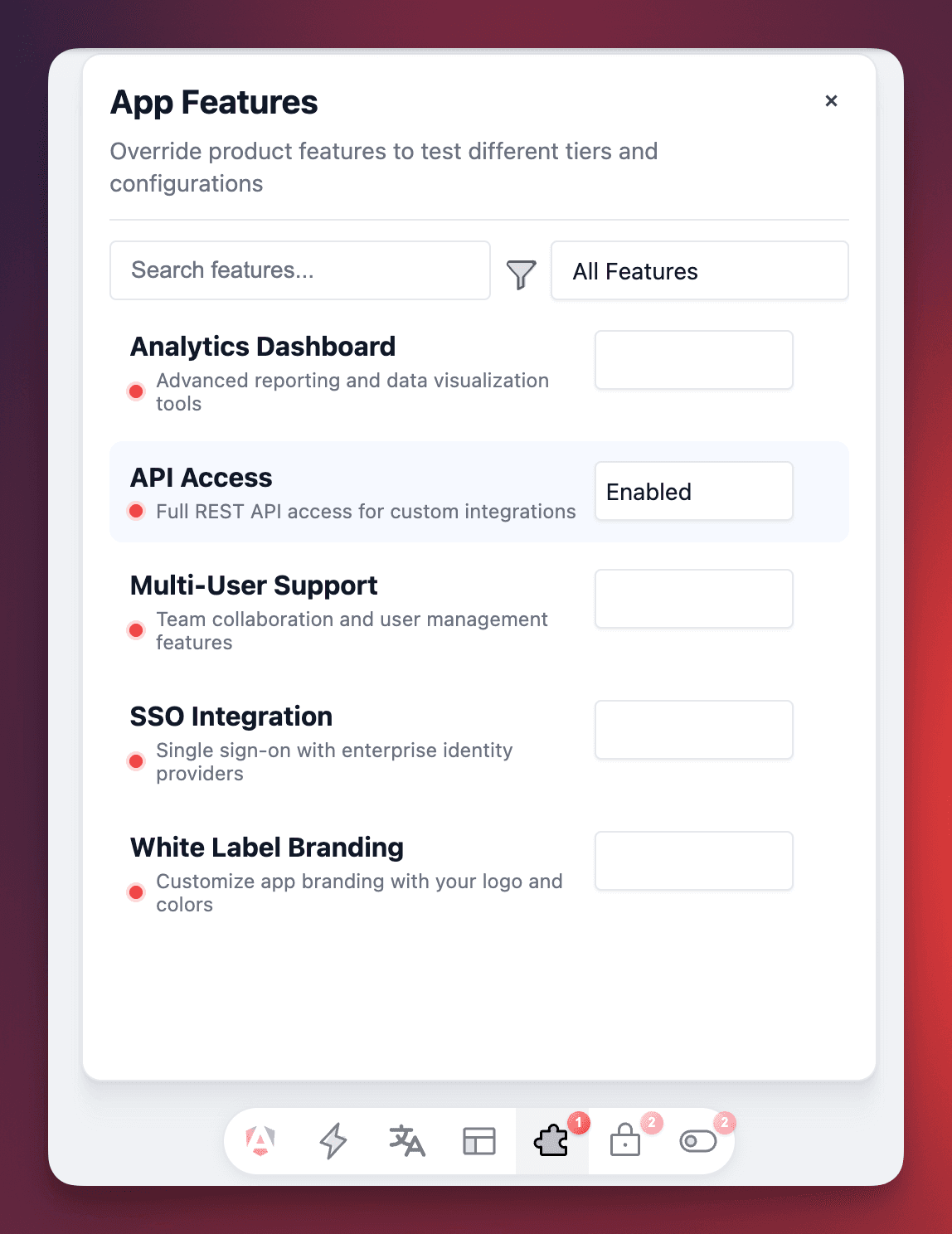
Similar to permissions, but for subscription tiers and license-based features. Test what users see on Basic, Pro, or Enterprise plans without changing their subscription in the database.
Presets
This is where it gets really powerful. Once you have a complicated configuration—a specific set of permissions, features, and feature flags—you can save it all as a preset.
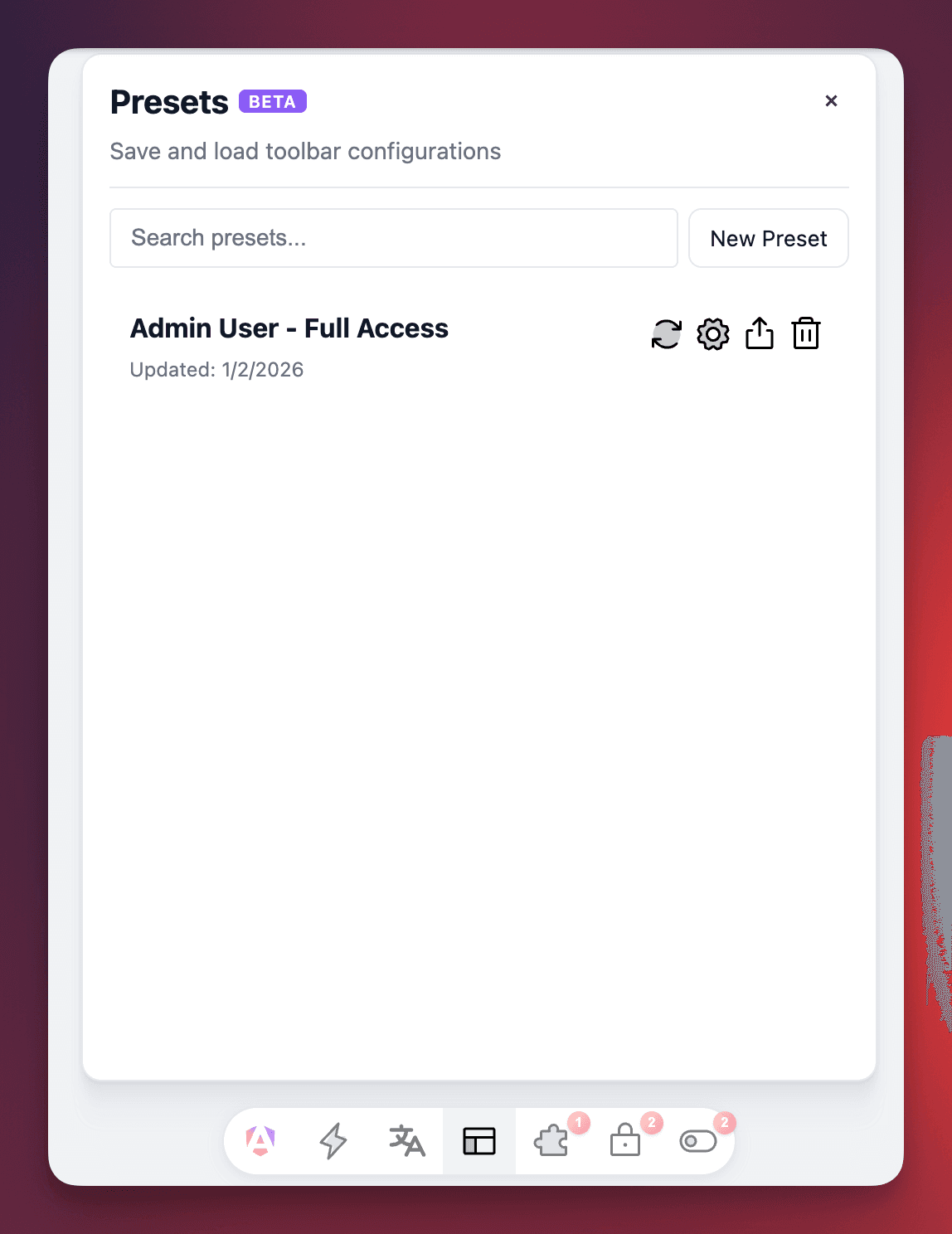
You can load and share these presets with your developer team, or switch between different user personas on the fly without modifying anything on the backend. Need to test what a trial user sees? Load the "Trial User" preset. Need to verify admin functionality? Switch to "Admin Full Access". It's that simple.
What's Next
This was just a quick introduction to what ngx-dev-toolbar can do. In the next article, we'll dive into how to actually integrate these tools with your application—connecting your feature flags, permissions, and app features to the toolbar so you can start toggling them.
Check out ngx-dev-toolbar on GitHub and give it a try. Your future self (and your flow state) will thank you!
Happy developing!